
As DevOps environments scale, managing user access across multiple systems becomes increasingly complex. Maintaining separate credentials, ensuring consistent access controls and onboarding users efficiently can introduce both operational overhead and security risks.
The Progress® Chef® 360™ platform addresses these challenges by integrating with external Identity Providers (IdPs) using Single Sign-On (SSO). It supports standard protocols such as OpenID Connect (OIDC) and SAML, allowing users to authenticate using their organization’s existing identity systems. This approach delegates authentication to the IdP, improving security while simplifying the login experience.
This walkthrough provides a step-by-step guide to configuring SSO on the Chef 360 platform at the tenant level, along with an explanation of how authentication flows impact the end-user login experience.
What is the Chef 360 Platform?
Chef 360 is a platform designed to help organizations manage infrastructure automation, compliance and operational workflows in a unified manner. It enables teams to define and enforce policies, execute automation tasks, and monitor system state across their infrastructure.
With Chef 360, organizations can automate infrastructure at scale, continuously validate compliance and orchestrate workflows through a centralized interface, improving consistency and operational efficiency across environments.
Why Should You Enable SSO on the Chef 360 Platform?
Enabling Single Sign-On (SSO) is not just a convenience; it plays an important role in strengthening security and simplifying access management.
With SSO, users authenticate using their existing corporate credentials, eliminating the need to manage separate usernames and passwords for Chef 360. Authentication is delegated to a trusted Identity Provider (IdP), enabling alignment with enterprise authentication mechanisms and access control policies.
This approach reduces risks associated with credential sprawl while improving the overall user experience. Chef 360 platform supports industry-standard protocols such as OpenID Connect (OIDC) and SAML 2.0, making it compatible with most enterprise identity providers.
How to Enable SSO on the Chef 360 Platform?
Prerequisites:
Before starting the configuration, ensure that you have:
Administrative access to Chef 360 Tenant Management
Access to an identity provider (Eg: Azure Active Directory)
Required IdP configuration details:
SAML: Metadata and X.509 certificates
OIDC: Client ID, client secret and issuer URL
Step 1: Access the SSO Configuration Page
Log in to Chef 360 as a Tenant Administrator, then navigate to:
Tenant Management → SSO Configuration
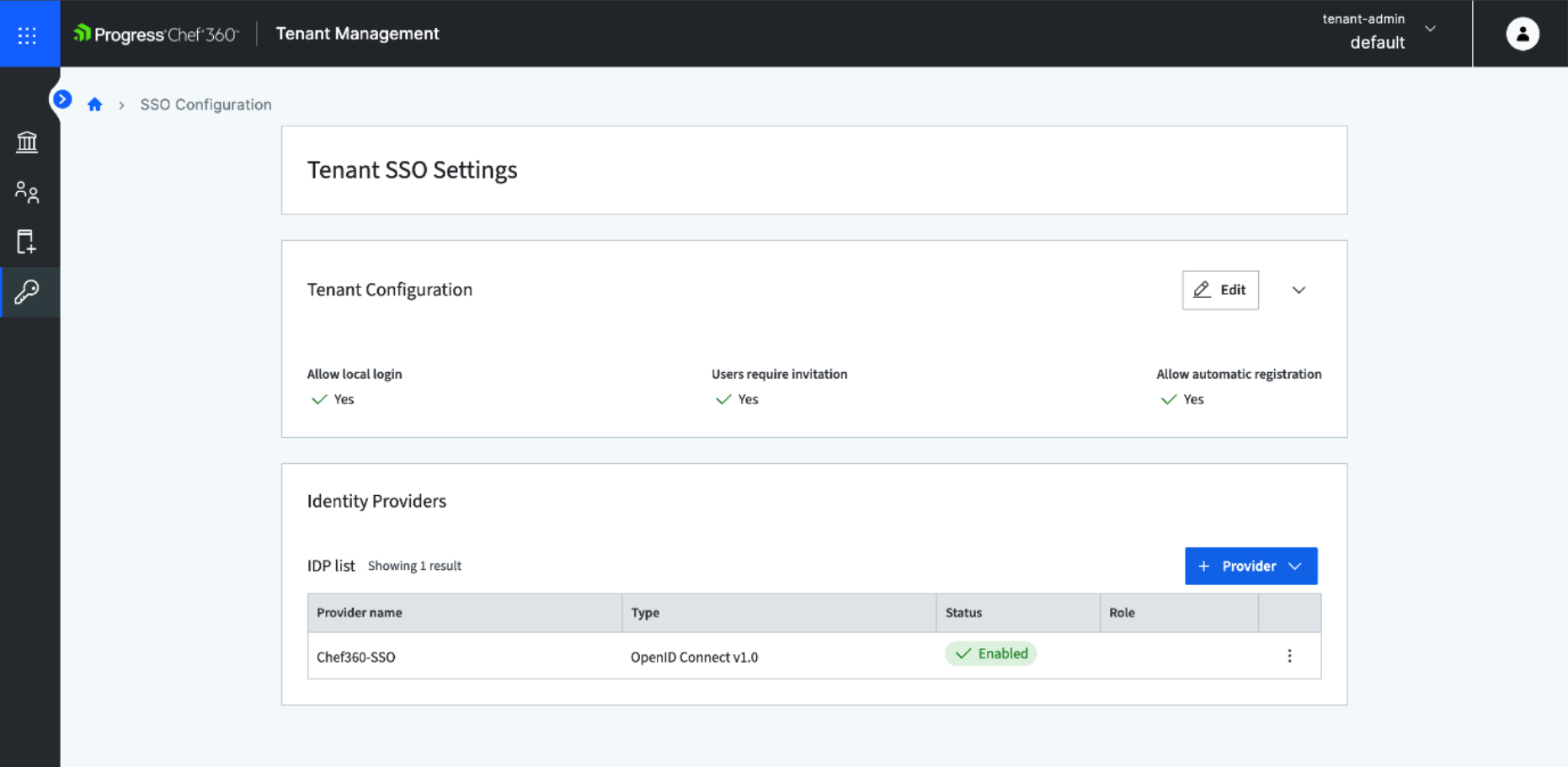
This opens the SSO Settings page, which serves as the central location for configuring Single Sign-On at the tenant level. From here, you can view existing identity provider (IdP) configurations and add new providers using either OIDC or SAML.
Step 2: Configure Tenant-Level SSO Settings
Before adding an identity provider, configure how Single Sign-On (SSO) should operate at the tenant level on Chef 360.
These settings define access control and user onboarding behavior:
Local Login (Fallback Authentication) - You can enable local login as a fallback method. This is recommended during initial setup to prevent accidental lockouts during SSO validation.
User Provisioning (Invite-Only) – Users are not automatically registered upon first SSO login. Access is strictly controlled through an invite-based model, where users must be explicitly added to the appropriate organizational unit. Only after being provisioned and assigned to the org unit will SSO authentication be enabled for that user.
User Attributes and Mapping - You can configure attribute mappings to ensure identity information (such as email or username) is correctly passed from the Identity Provider (IdP).
As a best practice, keep local login enabled until SSO configuration is fully tested and validated.
Step 3: Add an Identity Provider
To integrate an identity provider, select Add Provider and choose the appropriate protocol:
SAML v2.0, or
OpenID Connect (OIDC)
SAML Configuration
When configuring a SAML provider, provide the following details:
Identity Provider (IdP) metadata or entity details
Single Sign-On URL
X.509 certificate issued by the IdP
Attribute mappings to ensure user details (such as email) are correctly mapped
These mappings enable Chef 360 to correctly interpret user identity information during authentication.
OIDC Configuration
For OpenID Connect, configuration includes:
Client ID and client secret
Issuer URL provided by the identity provider
The Chef 360 platform allows you to import application configuration details using OpenID Connect (OIDC) metadata. Once configured, key parameters such as the Issuer, Authorization URL and Token URL are automatically populated.
In addition to the OIDC metadata, you need to provide client-specific details such as the Client ID, client authentication method and Client Secret (if applicable). You have an option to define attributes for these settings.
Configure Redirect URL in Identity Provider: After creating the Identity Provider configuration on the Chef 360 platform, a redirect URL is generated. This URL must be registered in your Identity Provider (IdP) configuration. This ensures that after successful authentication, the IdP can redirect users back to Chef 360 securely.
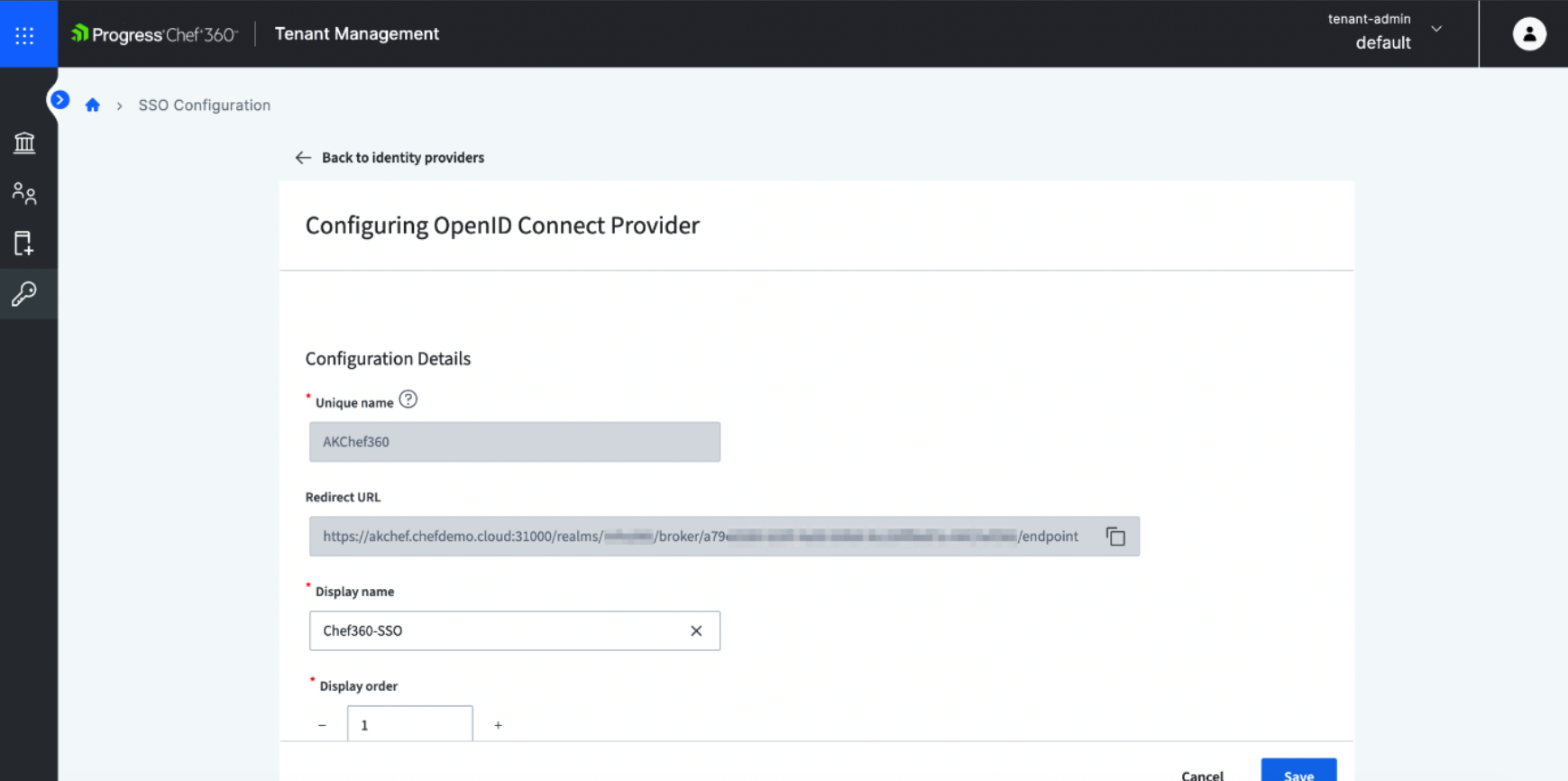
Once the required details are entered, save the configuration to make the provider available for authentication.
Importance of Attribute Mapping: Proper attribute mapping is critical for successful authentication. Attributes such as email or username are used by Chef 360 to uniquely identify users. If these attributes are missing or incorrectly mapped, users may not be able to log in or may not be associated with the correct account.
Step 4: Set a Default Identity Provider
After configuring one or more Identity Providers (IdPs), you can designate a default provider on the Chef 360 platform. This setting determines how users are directed during login.
If a default provider is set, users are automatically redirected to that provider for authentication
If multiple providers are configured without a default, users are presented with available login options and can choose their authentication method
This allows flexibility in environments where multiple identity providers are in use.
Step 5: Test the Configuration
After completing the setup, validate the configuration to ensure the authentication flow works as expected.
Log out of Chef 360
Navigate to the login page
Click on Configured SSO and observe the login behavior
Automatic redirection (if a default provider is configured) or
Manual selection of an identity provider
Authenticate using the configured Identity Provider.
Upon successful authentication, you are redirected back to the Chef 360 platform and granted access based on your configuration.
Testing also helps confirm that user provisioning and attribute mappings are functioning correctly.
User Login Experience
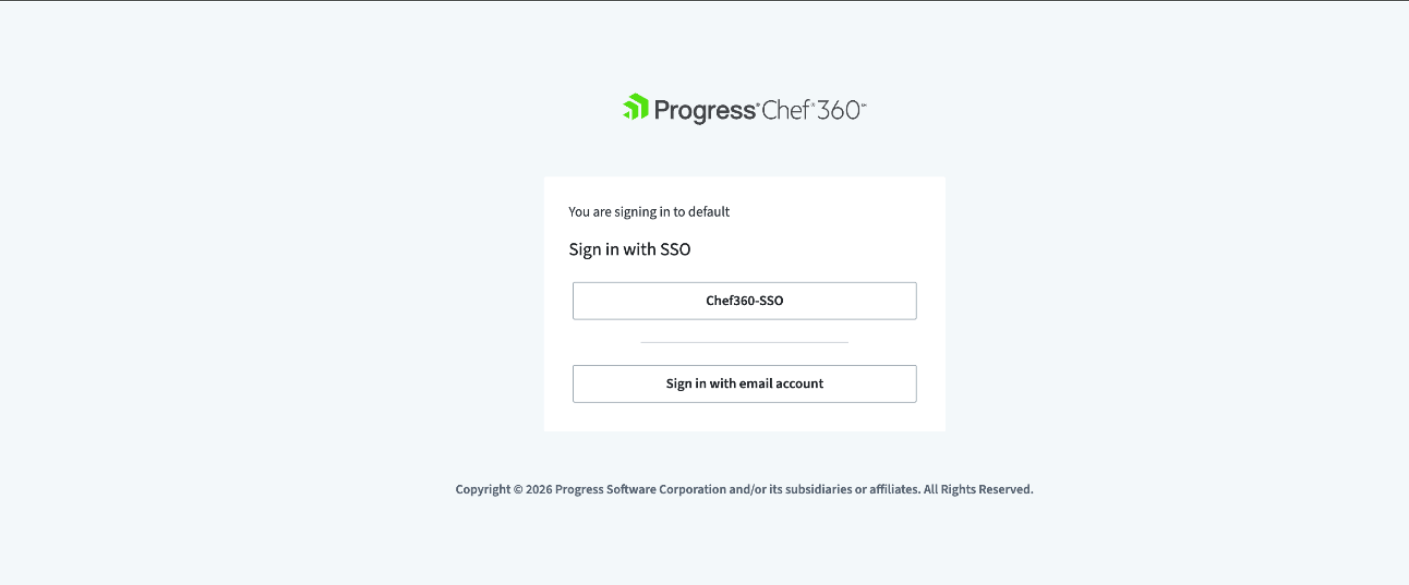
Once Single Sign-On (SSO) is configured on the Chef 360 platform, the login experience varies based on your setup:
If a default identity provider is configured, users are automatically redirected to that provider
If multiple providers are configured without a default, users are presented with available login options
If local login is enabled, users can also authenticate using email and password
This flexibility allows organizations to support different authentication scenarios while maintaining a consistent user experience.
Common Issues You May Face
Incorrect configuration values
OIDC: Incorrect issuer or redirect URL
SAML: Incorrect SSO URL or metadata
Invalid or expired certificates
Especially relevant for SAML configurations using X.509 certificates
Improper attribute mapping
Missing or incorrect email mapping can prevent proper user identification and login
Disabling local login too early
This can result in loss of administrative access if SSO is not fully validated
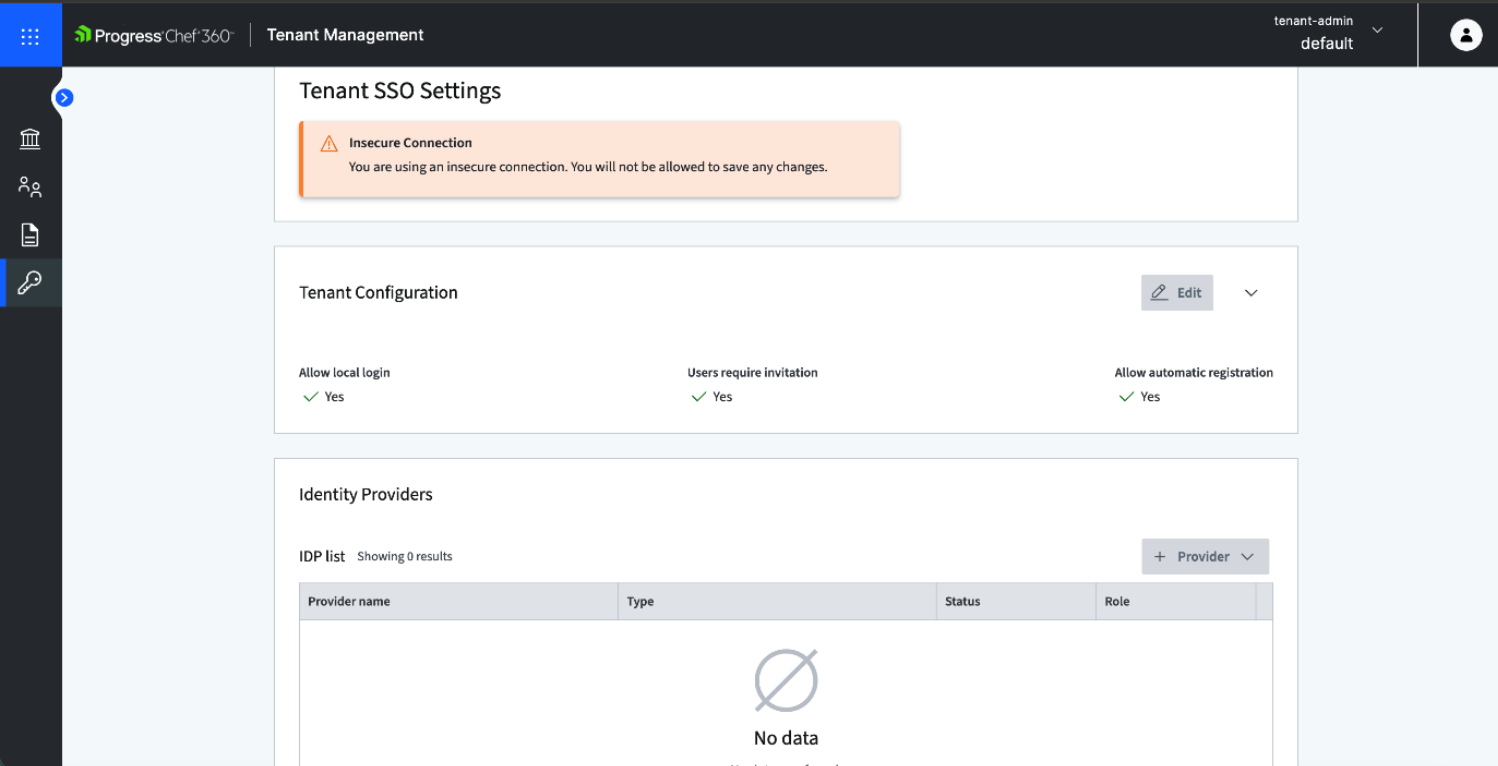
Additionally, the Chef 360 platform requires a valid platform certificate to enable SSO. If this requirement is not met, the option to add an Identity Provider (IdP) may be disabled in the UI.
Benefits of using SSO on the Chef 360 platform
Once Single Sign-On (SSO) is implemented on the Chef 360 platform, user onboarding becomes more efficient, as users authenticate using their existing organizational credentials. This reduces the need to manage separate credentials within the platform and lowers administrative overhead.
By delegating authentication to a trusted Identity Provider (IdP), the Chef 360 platform aligns with enterprise authentication standards and improves overall security. It also enables consistent access control policies across systems, reducing risks associated with credential duplication and mismanagement.
Conclusion
Configuring SSO on the Chef 360 platform enables secure and streamlined access to the platform by integrating with enterprise Identity Providers using standard protocols such as OIDC and SAML.
This approach simplifies user access management, enhances security through delegated authentication, and provides a consistent login experience across environments. As a result, organizations can better align Chef 360 with modern DevOps practices and enterprise identity management strategies.
To see how SSO can be configured on the Chef 360 Platform, either contact your Account Manager or book a Demo with us.